Help · version 0.1.13
Workspaces and dragging
A workspace lets you keep several views open together: for example, Tasks beside Calendar, or Conversations beside the chat you are reading. Each pane has tabs; opening a tab does not create a duplicate of its data.
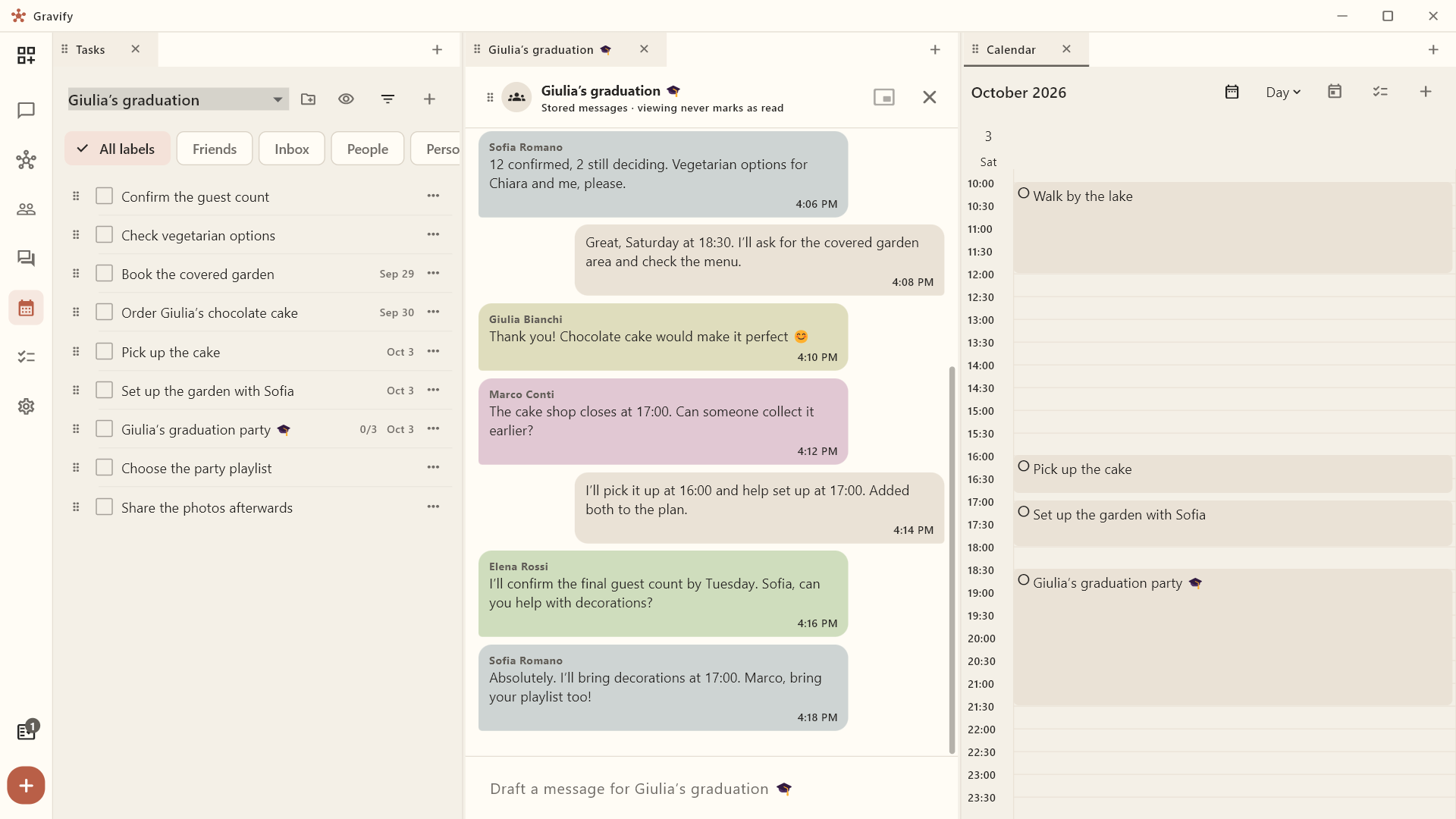
Arrange your views
Open views from the navigation. Use the six-dot handle beside a tab title to move it to another tab group or a highlighted edge to split the workspace. Drag a divider to adjust the space. Closing a tab closes the view, not the task, contact or conversation it displays.
Bring the important parts of your life together
Chats, tasks, people and Calendar can share one page. Choose the combination that helps with your current question: keep the person and conversation visible while deciding what to do, and check the time alongside it. You do not have to organize your life around a single list.
Rearranging panes and tabs is available now. Saving named personal arrangements and additional kinds of views are planned; they are not yet controls in this version.
Try it: turn a group conversation into a plan
Giulia is celebrating her graduation. The group agrees on Saturday evening, a chocolate cake and vegetarian food. Keep that conversation open while arranging the commitments: you can check what everyone said without losing the plan.
- Open Conversations, then the group you are organizing with.
- Open Tasks and drag its tab handle to a highlighted edge to put the list beside the conversation. Choose a list for the occasion, such as Giulia’s graduation.
- Add the practical tasks: confirm the guest count, check food options, order the cake and prepare the garden. Keep the people, timing and details in each task.
- Open Calendar alongside the list. Choose the week of the event using the arrows or period heading. Existing commitments help you find realistic times.
- Drag an undated task by the handle before its checkbox onto a free slot. Open it to adjust its duration. The list and Calendar show the same task, so you do not need to maintain two copies.
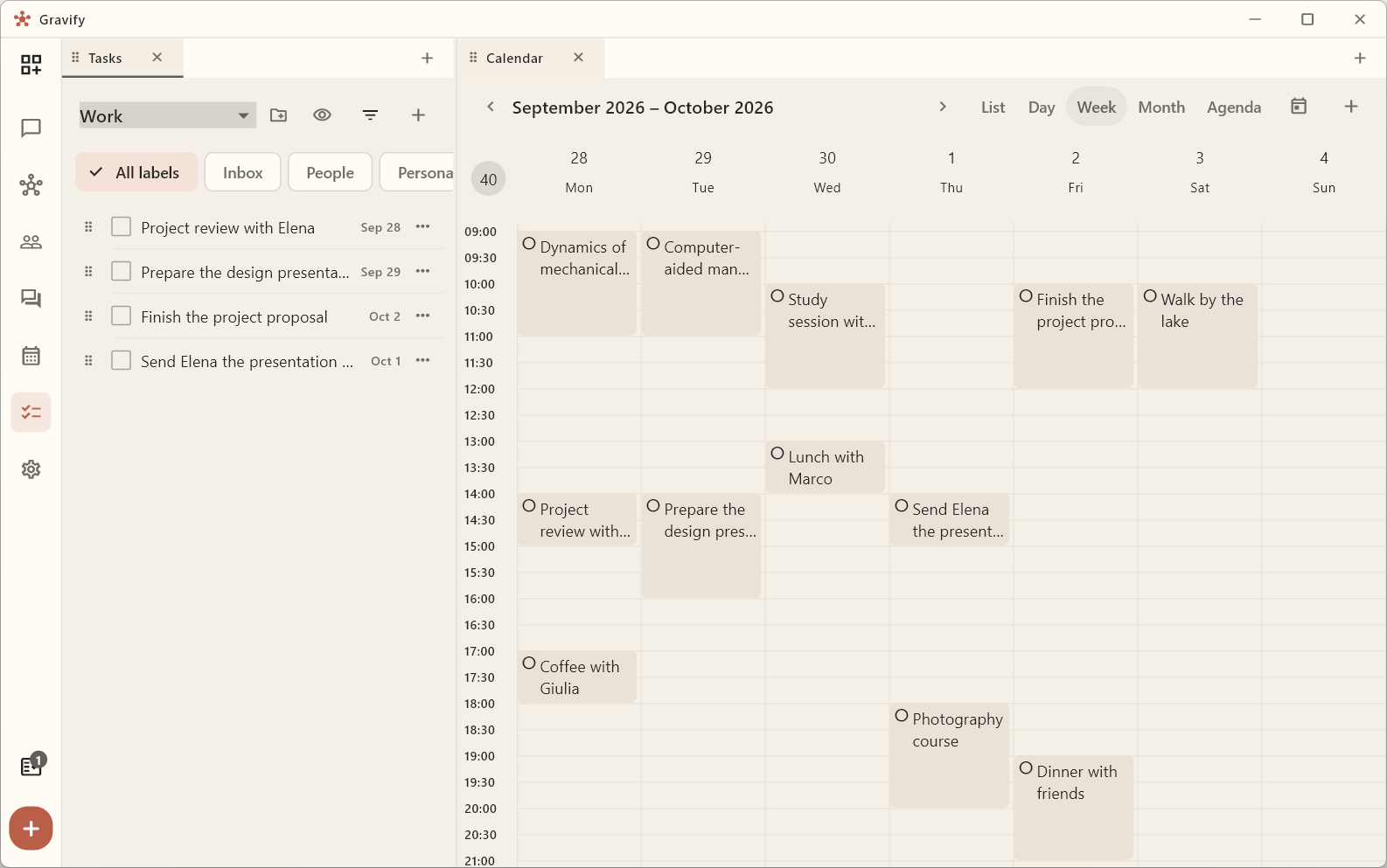
The same approach works for a trip, a shared project or a busy week. Keep Map and Contacts together when the people and their shared period matter. Add Assistant when you want help with a concrete request, dragging in only the useful context. See Tasks and lists, Calendar and recurrence and Using the Assistant.
Give each view enough room
Start with two useful views and drag the divider to suit their contents. A conversation needs enough height to read several messages; a week calendar needs room for both dates and times. Use Agenda for a shallower calendar pane, or keep other views as tabs until you need them.
On a smaller window, avoid squeezing every view into a separate pane. The useful layout is the one where you can read the information and act on it. Screenshot examples can be opened at full size; in the app, use the zoom controls for a closer look.
Choose what a click does
Open Settings → Appearance for the desktop tab preferences. By default, opening conversations from the list uses the next pane to the right, creating that pane if necessary. This leaves the conversation list available.
By default, clicks open new tabs. Enable the Ctrl-click for a new tab preference if you prefer ordinary clicks to replace the active tab. Ctrl-click then opens a separate tab. With the conversation-to-the-right preference enabled, the replacement happens in the next pane rather than replacing the conversation list. Disable that preference if you want the normal pane behavior there too.
Move context between views
- Drag a task by the handle before its checkbox onto Calendar to schedule it.
- Drag a person onto Calendar to prepare an encounter; add another person to an existing encounter as a participant.
- Drag a task, person or conversation into Assistant to include it as context for your request.
A highlighted destination tells you where a drop is accepted. A dragged item remains in its original collection: supplying context to Assistant does not move or delete it. Review the context before sending your request to your chosen model.
Map and Contacts share their time selector. Changing the interval in either view updates both, even when the other view is not visible. See The relationship map.