Help · version 0.1.13
Calendar and recurring activities
Open Calendar to see scheduled tasks and appointments from selected calendars. Undated tasks remain in Tasks until you give them a date.
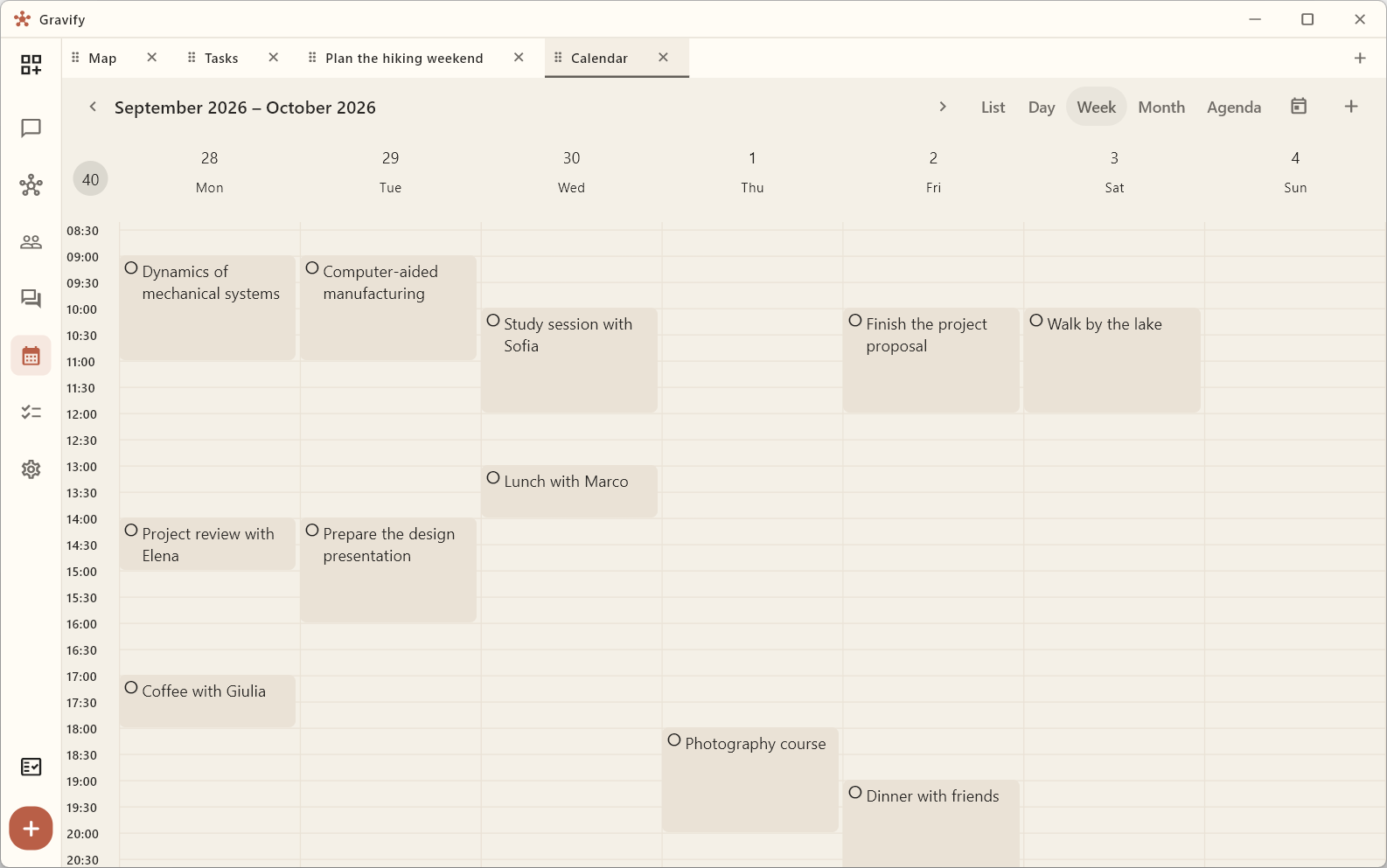
Plan and change your week
Use Previous period and Next period to move by day, week or month. Click the period heading to choose a date. In a narrow pane, use Change date for these actions. The view selector changes how the period is shown. Today returns to the current date. Open an item to inspect its time, notes and participants. Drag a movable item to reschedule it; use the editor when you need a precise date, duration or all-day setting.
Drop a task onto the calendar to schedule it. Drop a person onto a time to prepare an encounter with that person. Drop another person onto the encounter to add a participant. Review the details before saving.
Connect external calendars
In Settings → Accounts & Data Sources, connect the account, open Choose calendars, then select the calendars you want. All calendars selects the discovered calendars together; you can then turn individual ones off. Wait for the selection to reach the Hub and use Sync now. A selection still waiting to synchronize is not yet confirmation that its events were imported.
TickTick lists contribute tasks; dated tasks appear in Calendar and undated tasks remain in Tasks. A successful account login alone does not mean every list has been selected or every item downloaded.
Check the account and source shown on an item before editing it. External write-back depends on the provider, granted permission and supported operation. A local change or visible imported event is not proof that the external calendar has changed. If the source is read-only, use its original application for changes. See Connect mail and calendars.
Recurring activities
Calendar shows a recurring activity at each scheduled occurrence. That is useful when planning a week, but does not mean you created duplicate tasks. Tasks presents the series compactly. When changing one occurrence, pay attention to the scope offered by the editor; a single-instance exception is distinct from the series.
After an encounter
Where confirmation is requested, record whether the encounter happened and who attended. Check Review for decisions still needing your input. Imported or planned time alone should not be taken as proof that everyone attended. See Review meetings, contacts and changes.