Help · version 0.1.13
Use the Assistant
Use Assistant when you know what you want to achieve and want help preparing the work. Your tasks, contacts and conversations can supply context; you remain able to inspect and edit the underlying information directly.
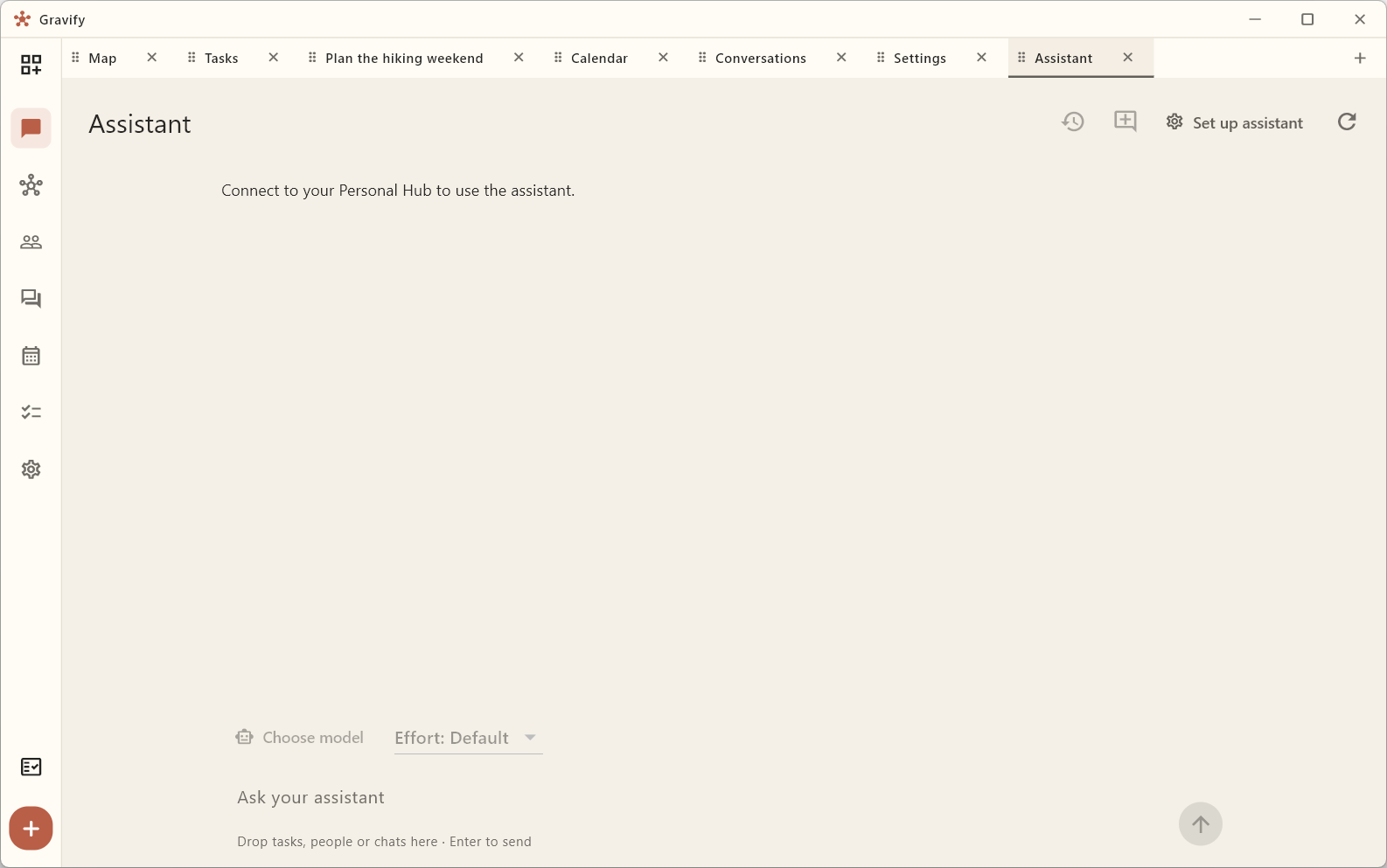
Connect a model
Open Settings → Assistant & agents. Choose the supported Codex connection or configure OpenRouter. The selected provider's account, usage limits and costs apply separately. Model availability depends on the provider and connection. An example workspace with no model connected cannot demonstrate an actual AI response.
See Settings and customization for the connection options, model setup and external MCP agents.
Give it a concrete request
- Open Assistant and choose your model.
- Drag the relevant task, person or conversation into the composer.
- Say what you want, such as “Help me plan the next steps for this project”. Include dates or constraints that matter.
- Read the response and inspect any proposed changes before applying them.
Use New chat for a fresh conversation and Past chats to return to earlier work. A calendar proposal is not the same as an applied event: use its review controls and check the resulting calendar.
Keep control of your context
Relevant private context is sent to the model you choose. Use only the context needed for the request. Your personal contact note and the separate Agent note have different purposes; the Agent note does not replace your own writing. Human communication still needs explicit approval: an assistant response or draft is not a sent message.