Help · version 0.1.13
Tasks and lists
A task is Gravify's common place for something you want to do or keep track of. It can be an undated idea, a scheduled appointment or an imported calendar item. Tasks and Calendar show different views of that same information.
Capture and organize
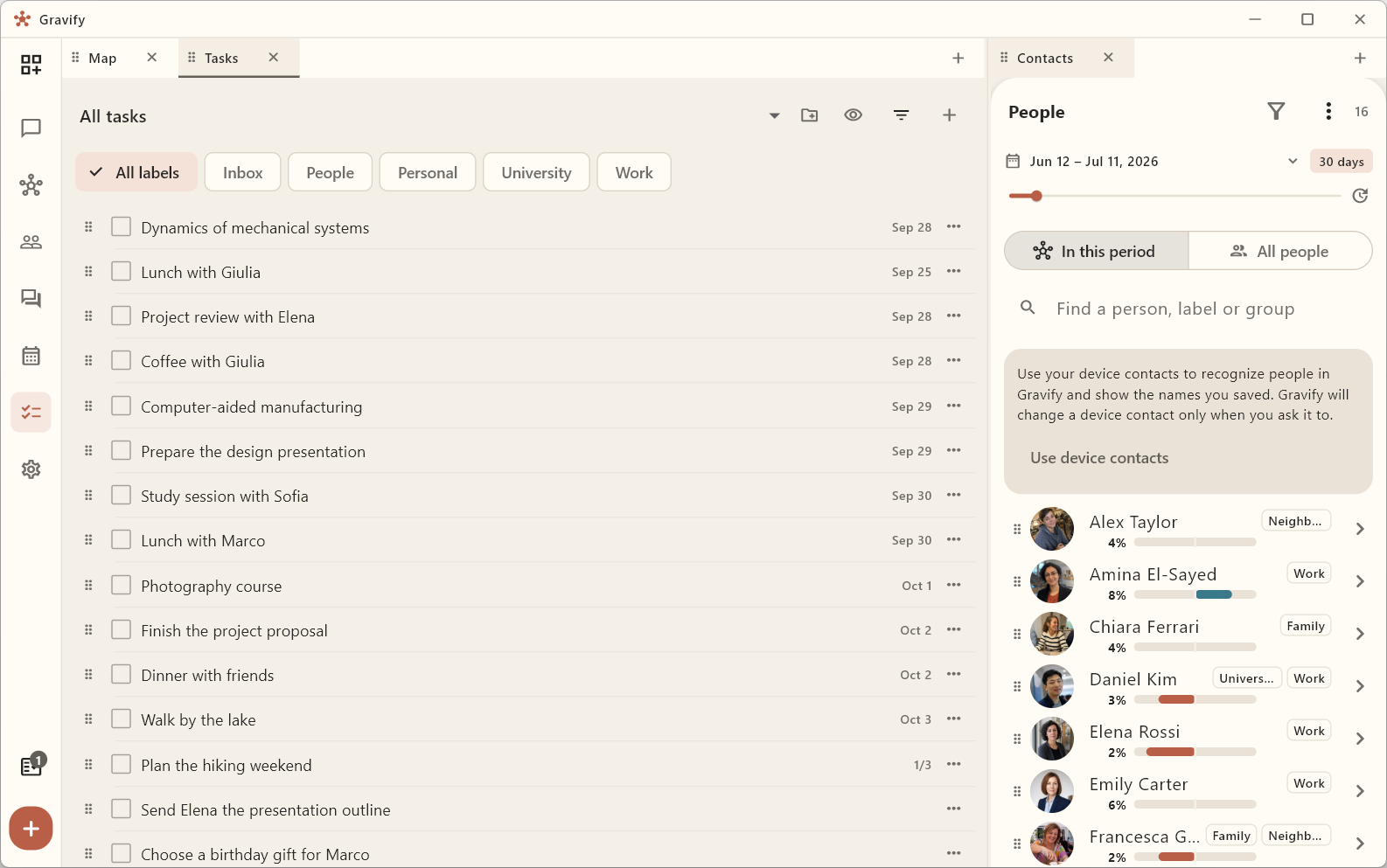
- Open Tasks and use Add task.
- Give it a clear title. Leave it undated if you have not decided when to do it.
- Choose a list, or keep it in Inbox. Inbox is the default list, not a separate synchronization queue.
- Open the task to add notes, checklist items, labels and a date.
All tasks combines your lists. Use list, label and status filters to narrow the view. The completed-items control changes visibility; it does not delete finished work. Create lists for the distinctions that help you, such as Work, University or People. Deleting a list moves its tasks to Inbox.
Keep the details with the task
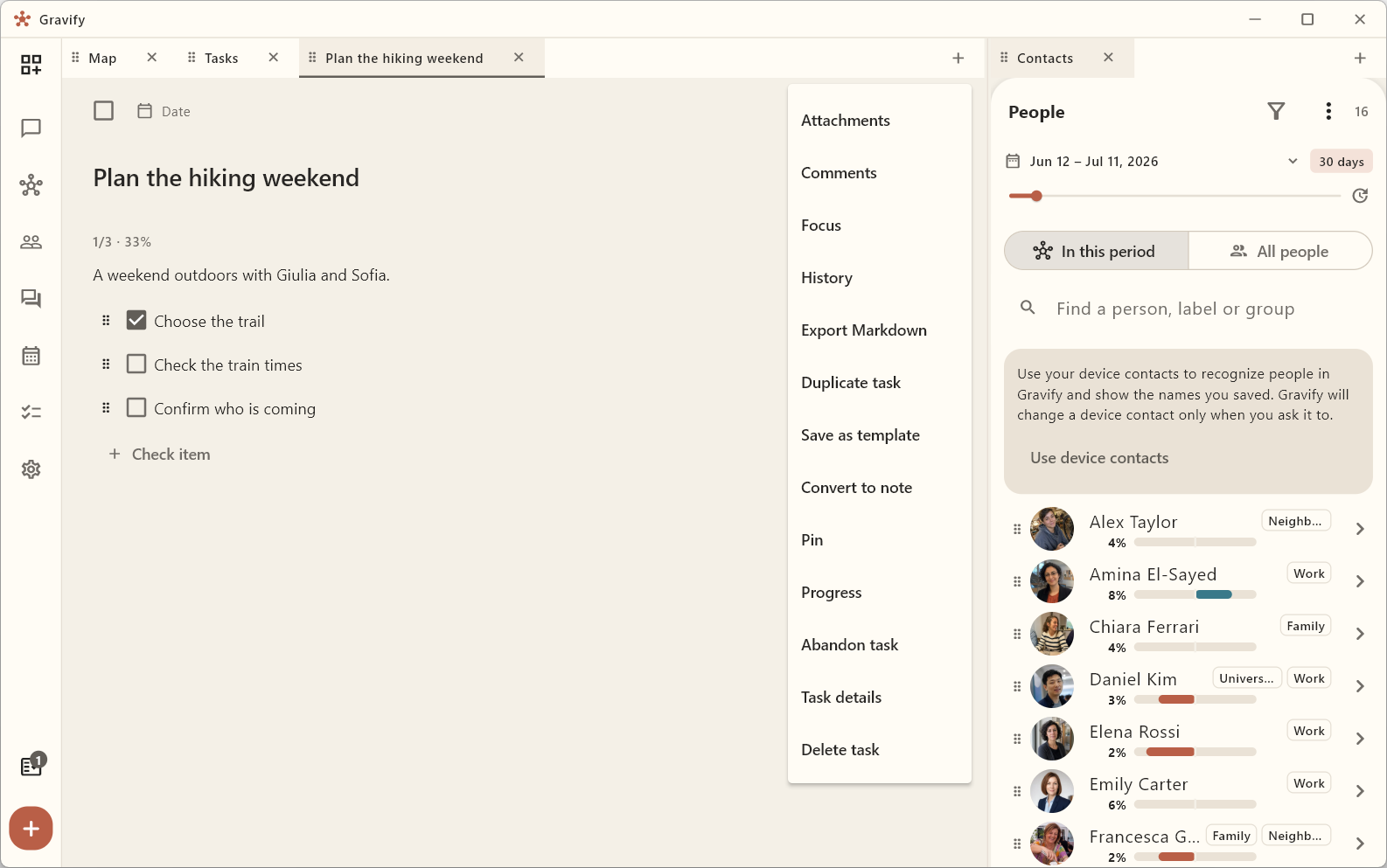
The task editor supports a description and checklists. You can also use comments, attachments, history and Focus from its controls. History and shared operations require the Hub; an unavailable control is not evidence that data was lost. Restoring a saved version is a new change, not deletion of every later record.
Focus records a timed work session. Choose the duration and start it; stop the session when necessary. A focus session does not complete the task for you.
Put a task in your week
Drag its handle, immediately before the checkbox, onto a time in Calendar, or set its date in the editor. The same task acquires a schedule. Postpone shortcuts move the date; No date returns it to unscheduled work.
A recurring series should not fill All tasks with identical copies. The task view represents the series once; a separately changed occurrence can appear independently. Calendar shows occurrences on their actual dates. See Calendar and recurring activities.
To keep a task beside the related chat or person, use Workspaces and dragging.
Notes, templates and task state
Open Task options for additional tools. Duplicate task creates a separate task; Save as template keeps a reusable starting point, and Create task from template makes new work from it. Convert to note is useful for information without a completion checkbox; you can convert it back to a task.
Pin keeps an item prominent. Progress uses checklist completion when there is a checklist, or lets you set progress manually otherwise. Abandon task removes it from active work without claiming it was completed; find it through the abandoned status filter and use Reactivate task if plans change. Delete requires a separate action.