Help · version 0.1.13
Install on Windows and understand security warnings
Download on the Windows computer
Open your Gravify account in Edge on the PC, choose the Windows download, then run the installer. An iPhone can verify your account and supply contacts, but the Windows installer runs on your PC.
If a verification email does not open in Gmail, hold the button or copy the complete fallback URL into Safari or Edge. Keep that private link to yourself. If it has expired, request a new email from sign-in. Then open your account on Windows to download.
Edge says the file is not commonly downloaded
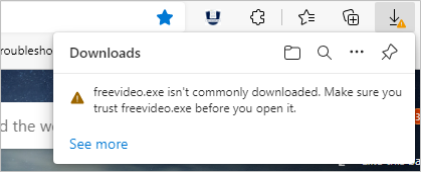
Image excerpt: Microsoft’s SmartScreen demonstration, captured 21 October 2026. It is a Microsoft example, not a Gravify download; wording and menus can differ.
For a not commonly downloaded warning, verify that you started from your account on gravify.it. In Edge’s Downloads panel (Ctrl+J), open the file’s … menu and choose Keep; expand Show more → Keep anyway if offered. Only continue if the file is the release you intended to download.
Windows protected your PC
If SmartScreen describes an unrecognized app, open More info, inspect the application and publisher, and choose Run anyway only if you trust that download. If a Windows permission prompt appears, check it refers to the installer you just opened before approving it.
SmartScreen evaluates both file and publisher reputation. A new release may have insufficient reputation even when signed; this warning alone neither proves malware nor proves safety. Microsoft explains reputation checks.
If the warning names a virus, malware, an unwanted application, or a managed-device policy block, stop and contact support with the warning text. Windows 11 Smart App Control and organization policies may not offer a continuation button. Keep Windows protection enabled; do not add antivirus exclusions or disable protections to install Gravify.
First setup
Activate the app, then open Settings → Accounts & Data Sources. WhatsApp is optional. Before pairing, review the connector notice and choose what data it may retain. Import phone contacts using the illustrated VCF guide.
A connected phone does not mean history is already imported. Keep the PC awake and online while the source supplies history. You can open Settings and use other parts of the app during this process. The map can change as saved history grows; an empty map is not proof that the import failed.
If WhatsApp pairing reports a connection error, check internet access on both devices and retry once. Temporarily comparing another trusted network or a phone hotspot can help isolate a network-dependent problem, but does not identify its cause. Note which device changed network and the exact error. Avoid repeated disconnects once a session is connected. See Troubleshooting and Getting started.