Help · version 0.1.13
Export phone contacts
You can use an iPhone or Android phone with Gravify on Windows. You do not need a mobile Gravify app. Export your address book as a vCard (.vcf), transfer that file to your PC, then import it in Gravify.
iPhone
In Contacts → Lists, hold the list you want, choose Export, include names and phone numbers, then save the file in Files. Use a transfer method you control to copy it to Windows. Repeat for other lists if needed.
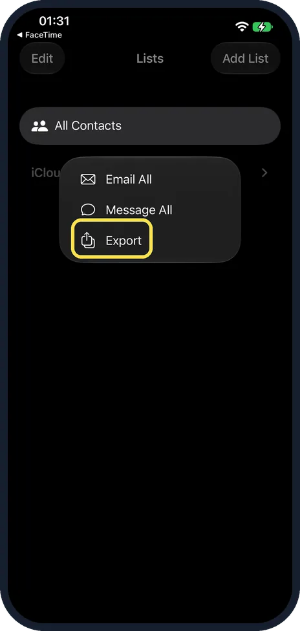
Image excerpt: How To, Simply — iPhone export walkthrough, captured 21 October 2026. Its example is labeled iOS 27; appearance varies by version. Instructions checked against Apple’s iPhone guide. Select your iOS version there if the controls differ.
Android with Google Contacts
Open Contacts → Fix & manage → Export to file, select the accounts and export a .VCF file. Menu names depend on the installed Contacts app.

Screenshot excerpt and current instructions: Google Contacts Help, checked 21 October 2026. This image shows the official instructions, rather than a phone screen.
Samsung Contacts and other address books
In Samsung Contacts, open Menu → Manage contacts → Import or export contacts → Export. Choose a file location, rather than exporting only to the SIM, and transfer the resulting VCF to Windows.
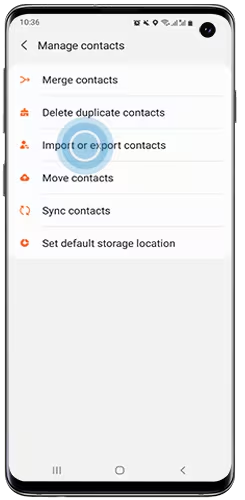
Image excerpt: Samsung’s contact-management guide, captured 21 October 2026. The manufacturer’s example can differ from your phone. For another address book, use its Export → vCard/VCF option; CSV is not accepted on this page.
Import on Windows and check the result
- In Gravify open Settings → Accounts & Data Sources → Import files → Contact files.
- Leave Names and Phone numbers selected, then choose your VCF. Add the international country code to phone numbers in the original address book if matching is ambiguous.
- Preparing reads the file. Queued means the Hub has not confirmed it yet: keep the Hub reachable and check synchronization. Only imported confirms completion.
- Open a known person in Contacts and a linked WhatsApp conversation. The saved name should take priority over the provider name; explicit Gravify edits remain protected.
You can import before or after connecting WhatsApp. A name alone cannot safely identify a person: matching needs a valid phone number/email or an explicit provider link. WhatsApp may initially supply an opaque identifier without the matching phone number. If a name remains missing after completion, check that person’s number in the VCF and the connector status; do not repeatedly disconnect WhatsApp or enable manual overwrite to force a match. See Importing and storage.
The file contains private contact details. Keep it on devices you control and remove temporary transfer copies when you no longer need them.