Help · version 0.1.13
Connect mail and calendars
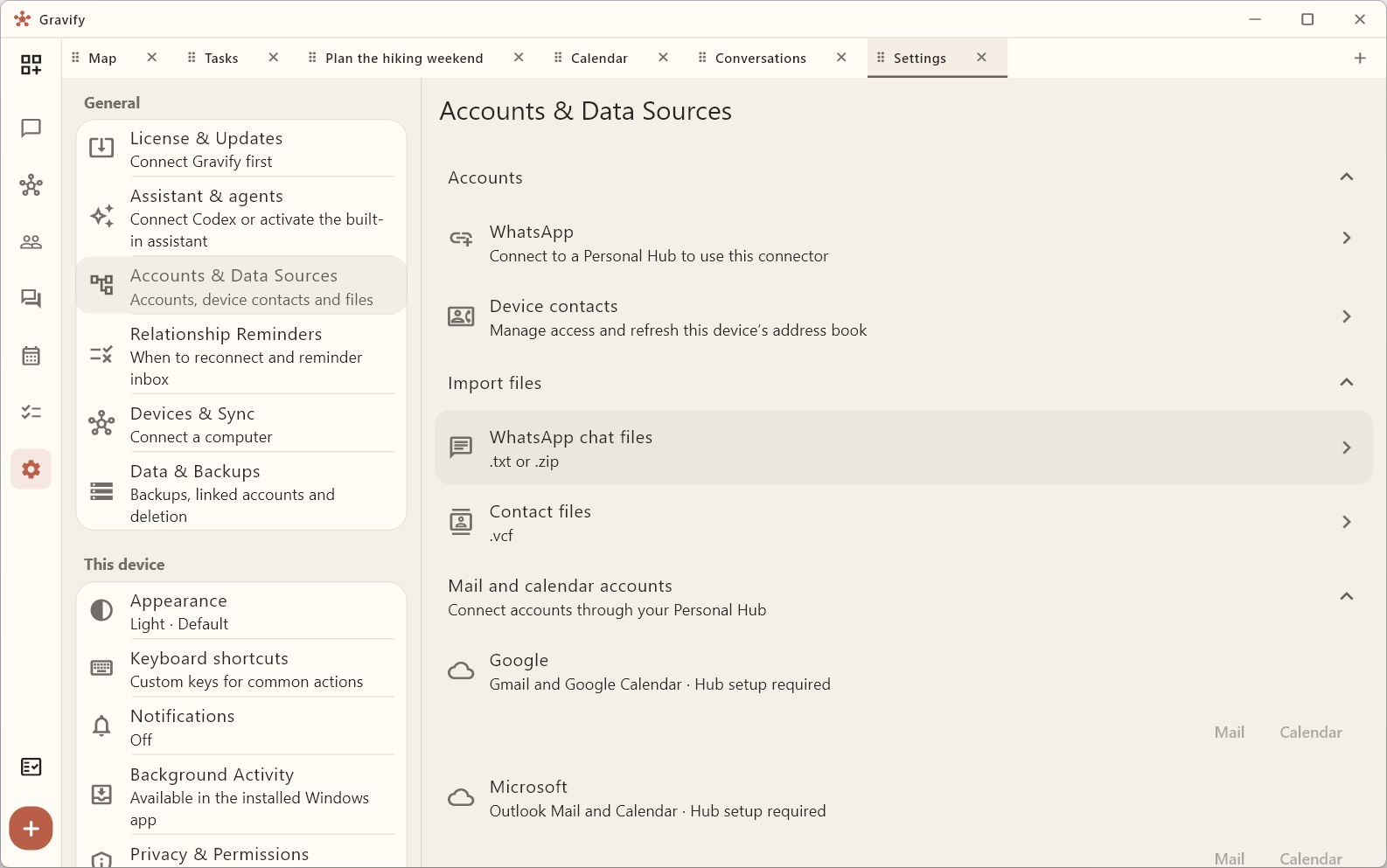
Open Settings → Accounts & Data Sources → Mail and calendar accounts. A connection opens a browser page served by your Personal Hub. Sign in with the provider there and approve only the feature you selected.
You can connect more than one Google or Microsoft account. Once one is connected, choose Add account for another. Each account appears by name below its provider. Use Enable mail or Enable calendar on that account to grant the other feature; make sure you sign in to the same provider account in the browser. If an account needs a fresh login, choose Reconnect account.
Your provider tokens and imported content stay in the Personal Hub. Gravify's account and licence service does not receive them. If a provider says the Gravify app is unavailable or unverified, the product-wide provider setup is incomplete; changing your local account will not fix that.
Choose Mail for Gmail or Calendar for Google Calendar. Sign in to the Google account you want to connect and review the permissions shown by Google. Mail requests read and send access; Gravify never sends a message without your explicit action. Calendar synchronization requests read access. Connecting one feature does not silently grant the other; choose the other button later if you want both.
Google may show the Gravify consent screen again when a new permission is needed. If synchronization later reports that authorization is required, reconnect that feature from the same page.
Microsoft
Choose Mail for Outlook or Microsoft 365 mail, or Calendar for its calendar. Personal Microsoft accounts and organizational accounts can use the same connection flow. An organization administrator can still block third-party applications or require administrator consent.
TickTick
Choose Connect beside TickTick. Gravify uses TickTick's official read-only Open API permission and imports selected lists as tasks. Dated tasks appear in Calendar; undated tasks appear in Tasks. Lists without dated tasks are still useful. TickTick currently requires reconnecting if its access token stops working.
Another mail provider
Choose Connect beside Other mail provider and enter the mailbox's IMAP settings. Gravify requires encrypted IMAP over TLS, normally on port 993, and opens folders read-only. Use an app password when your provider requires one; do not enter your normal password if the provider offers app passwords.
The initial folder is INBOX. You may enter additional exact folder names separated by commas. This connection can read and index mail but cannot compose or send it. Provider-specific OAuth is preferable when Google or Microsoft is available.
Synchronize or disconnect
Use Sync now in Mail or Calendar to fetch current changes. Imported data remains local when you disconnect an account; disconnecting removes the saved provider credential and stops future synchronization. Local data deletion is a separate action under Data & Backups.
To decide which calendars appear, choose Choose calendars on a connected account and switch each discovered calendar on or off. Newly discovered calendars are off until you choose them. Use Sync now after the selection has reached your Personal Hub; only selected calendars contribute events to the Calendar view. You can mix calendars from several Google and Microsoft accounts with your TickTick connection. The account name and calendar name help distinguish them.
If the app says Hub setup required, the installed Hub does not contain a usable product provider configuration. Install a build in which that connector is enabled, or ask Gravify support; end users should not create their own Google, Microsoft, or TickTick developer applications.
Provider sign-in returns to Gravify on its reserved local port 28473. If
Gravify reports that this port is already in use, close the other local
application using it and reopen Gravify. The Hub does not switch OAuth ports
silently because Google, Microsoft and TickTick require the callback address to
match the public Gravify registration exactly.
Read messages in Communications
Open Communications (the Conversations tab) after synchronization. Gravify groups direct WhatsApp chats and email threads under the same person when their identities are already linked. All shows one chronological local stream; use WhatsApp or Email to inspect only that source. Group chats and email threads with several other people remain separate so Gravify does not invent a one-to-one conversation.
Reading conversations is read-only. Opening a message does not mark it as read at Google, Microsoft, your IMAP provider, or WhatsApp. The source remains visible, and messages and provider credentials stay on your Personal Hub.
Use All calendars to select all discovered calendars, then turn individual ones off if needed. Wait for any pending-selection status to clear. Sync now first sends pending choices to the Hub before requesting new provider data.
Read Calendar and recurring activities and Read conversations and email for the next step.
The screenshot shows an example workspace without a connected Hub; connection buttons become available after Hub setup.