Help · version 0.1.13
Read conversations and email
Open Communications (the Conversations tab) after connecting a source and synchronizing. Direct chats and email threads can be grouped under a person when their identities are linked. Group conversations stay distinct. Search for the person or conversation, then open it beside the list.
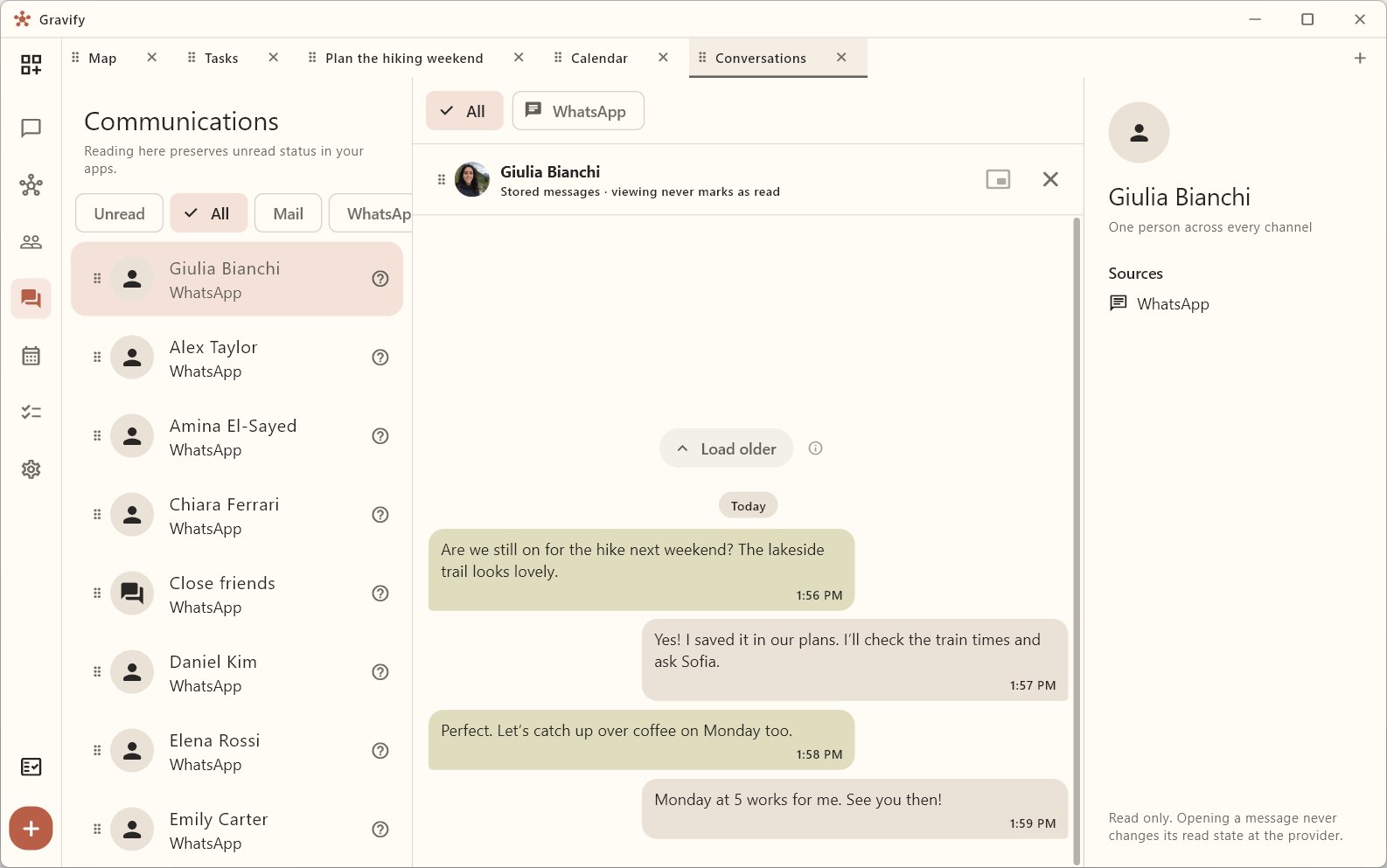
Read without losing your reminders
Opening a conversation in Gravify does not mark it read in WhatsApp or your mail provider. An unread marker from the source can therefore remain useful as a reminder to reply. Source state may change on the next synchronization; a local history view is not a live guarantee of the provider's current state.
Use source filters to distinguish WhatsApp and email. An empty conversation can mean its history has not downloaded yet. Check the source and import progress before concluding that messages are missing.
Email formatting and images
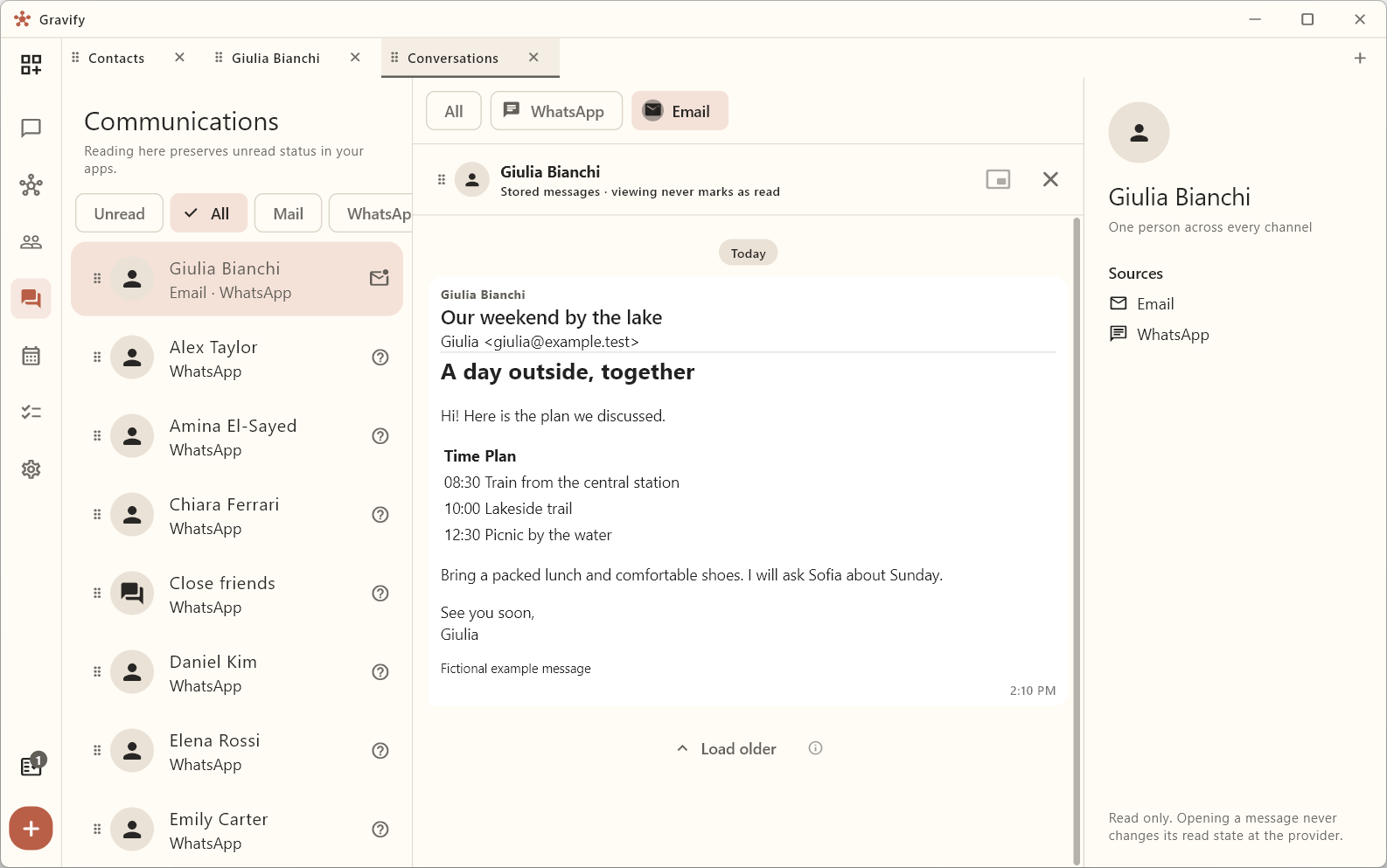
Email is rendered with its formatted body, supported inline images and external images. External images may contact their host when loaded. Scripts and executable page content are not run inside the reader. Attachments are not automatically installed or executed.
Interactive email features cannot all run inside a mail reader. If a form or embedded control cannot be used, follow the message's link or Open original message when available to open the provider's original view in your browser. Trusting a sender does not turn an email into unrestricted executable code.
Use a conversation as context
Drag a conversation into Assistant to ask about the context, or keep it beside a task while you write the next step yourself. Reading and preparing work are separate from sending a message. Gravify does not send a reply merely because you opened, dragged or summarized a conversation.
See Connect mail and calendars for account setup and Workspaces and dragging for tab preferences.