Help · version 0.1.13
Uninstall, disconnect, or delete data
Start in Settings → Data & Backups. That screen keeps backup, linked-account, deletion, uninstall, and troubleshooting information together.
Choose what to keep
| Action | WhatsApp link | Imported history |
|---|---|---|
| Pause sync | Kept | Kept; no new data arrives |
| Remove the WhatsApp link | Removed | Kept |
| Delete WhatsApp history and link | Removed | Only WhatsApp history is deleted |
| Delete all data | Kept until you remove it separately | All Gravify data is deleted |
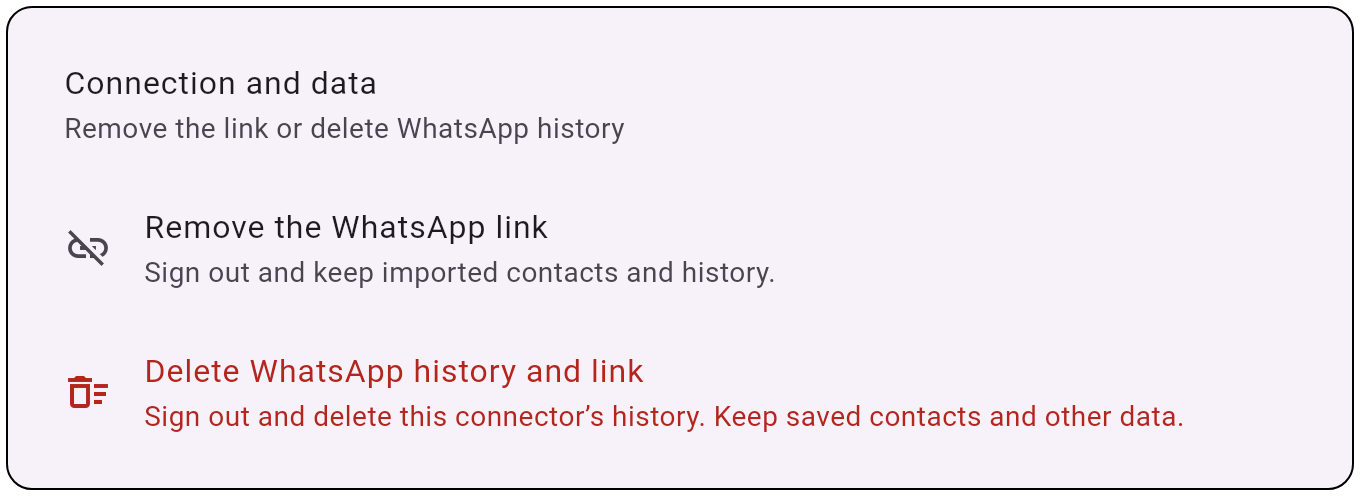
The WhatsApp screen groups its removal options under Connection and data:
Before deleting anything
Choose Export a backup if you may want the data again. The ZIP contains contacts, conversations, media, avatars, calendars, encounters, reminders, and relationship data. It never contains account passwords, provider tokens, or linked-device sessions. Import a backup validates the complete archive, merges it with existing data without duplicating messages or media, and recalculates relationship presence.
Keep Gravify open while saving an export or uploading a backup to the Hub. These file transfers show a progress window that pauses navigation and normal Windows closing. After the upload, the Hub restores the backup in the background: a bar across the app shows the current phase and the number of messages saved. You can navigate and use data as it arrives. Keep the Personal Hub powered on. If it shuts down, reopen Gravify to resume from the last saved block. An interrupted import offers Retry or Stop; stopping keeps data already restored. Export and database deletion remain unavailable until the import completes or is stopped. A new backup replaces the selected file only after the download is complete. If a previously stored media file is missing, the export reports the problem instead of silently leaving it out. Media never downloaded to the Hub is not included.
Wait for the saved-file confirmation before deleting data. After an import, a device refresh can fail independently: if Gravify says the backup was imported but the device has not refreshed, synchronize again rather than assuming the import failed.
I want to stop WhatsApp temporarily
Open Settings → Accounts & Data Sources → WhatsApp and choose Pause sync. No new WhatsApp data is transferred. The linked-device sign-in and previously imported history are kept, so turning it on again does not require deleting or importing anything.
I want to remove this PC from WhatsApp
Choose Settings → Data & Backups → Remove the WhatsApp link, or open Connection and data on the WhatsApp screen. Gravify signs the Personal Hub out of the linked-device session but keeps the WhatsApp history already imported into Gravify. Connecting again requires linking your account again.
I want to delete only WhatsApp data
Choose Settings → Data & Backups → Delete WhatsApp history and link, also available under Connection and data on the WhatsApp screen. Gravify first removes the linked-device sign-in, then permanently deletes imported WhatsApp history and its connector configuration. Saved contacts, calendars, and other Gravify data remain available. Imported chat files and live-connector history are both removed, including their stored message attachments. Messages in WhatsApp itself are not deleted.
I want to delete all Gravify data
Choose Settings → Data & Backups → Delete all data and type DELETE. Contacts, conversations, stored attachments, avatars, calendars, reminders, and relationship data are removed from the Personal Hub and encrypted replica while Gravify stays installed and open. A WhatsApp linked-device session is stored outside those databases, so use Remove the WhatsApp link first if you want that sign-in erased too.
I want to uninstall Gravify
Open Windows Settings → Apps → Installed apps → Gravify → Uninstall. The uninstaller reminds you that a backup can be exported and asks whether to remove personal data too.
- Leave Also permanently delete all Gravify personal data from this PC unchecked to remove the program but keep the workspace for a later reinstall.
- Select it only when you want the program and all Gravify-managed local data removed. A second confirmation is required.
Complete removal deletes program files, Hub data, encrypted client data, shortcuts, and Gravify registry entries. It does not search the disk for unrelated folders that happen to be named Gravify.
Where Gravify files are on Windows
- Program files:
%LOCALAPPDATA%\Programs\Gravify - Personal Hub:
%LOCALAPPDATA%\Gravify\Hub - PostgreSQL database:
%LOCALAPPDATA%\Gravify\Hub\data\postgres - Private media, attachments, and WhatsApp linked-device data:
%LOCALAPPDATA%\Gravify\Hub\data\app - Diagnostic logs:
%LOCALAPPDATA%\Gravify\Hub\logs - Downloaded updates:
%LOCALAPPDATA%\Gravify\Hub\updates - Encrypted desktop-client data:
%APPDATA%\Gravify
For an installation, startup, database, or WhatsApp problem, begin with %LOCALAPPDATA%\Gravify\Hub\logs. Useful files include installer.log, bootstrap.log, native-supervisor.out.log, postgres.log, daphne.log, whatsapp-gateway.log, and attachment-maintenance.log. These paths are also shown under Settings → Data & Backups → Technical locations. Tap a location to copy its path to the clipboard.
Deleting a hosted Gravify account is separate: it concerns account and licence records and does not replace local deletion or Windows uninstall.